How to Take Bookings Online Without Losing Your Weekends

How to Take Bookings Online Without Losing Your Weekends
Pick a booking tool that gives you a shareable booking page and an embeddable widget, syncs to your calendar, takes payment at the time of booking, and sends automated reminders. That combination stops double bookings, cuts no-shows, and gets you accepting clients within an hour of signing up. For trades and service businesses, a tool like QuoteLock that connects booking straight to quotes, deposits, and invoicing removes the extra software you’d otherwise need to stitch together.
TL;DR:
- Connecting your calendar to your booking software is essential to prevent double-bookings and ensure accurate availability management.
- Embedding a responsive booking widget that adapts to mobile screens significantly improves user experience and conversion rates.
- Collecting full payment at booking is suitable for inexpensive services, while deposits are better for higher-cost jobs with larger cancellation risks.
- Automated reminders with rescheduling links drastically reduce no-shows, especially when combined with a clear cancellation policy.
- For trades, integrating quoting, scheduling, and invoicing within a single tool like QuoteLock streamlines the entire workflow and saves administrative time.
Table of Contents
- What features do you actually need to take bookings online?
- How do you set up online booking in five steps?
- How do you add a booking widget to WordPress, Shopify, Wix, and other builders?
- Should you collect deposits or full payment at booking?
- What actually cuts no-shows?
- How should contractors configure buffers, travel time, and job flow?
- Why most booking advice misses what trades actually need
- Get your booking, deposit, and invoice flow running in one tool
- Sources
What features do you actually need to take bookings online?
Most owners overbuild their setup on day one, then wonder why clients bounce off a confusing page, but learning how booking software reduces admin time for small businesses can help streamline the process. Start narrower than you think you need to.
Booking page vs. widget vs. floating button. A booking page is a standalone link you can drop in an email signature or Instagram bio. An embedded widget lives directly on your website, so a visitor books without ever leaving your domain, which keeps them in your funnel and improves conversion compared to sending them off-site. A floating button (a small “Book Now” tab that follows the scroll) works well on content-heavy sites where you don’t want a widget competing with your homepage layout.
Calendar sync is non-negotiable. Connect Google, Outlook, or iCloud calendars so a job you booked over the phone blocks that slot online automatically. Without sync, you will double-book someone eventually. It’s a matter of when.
Availability rules matter more than people think. Set minimum notice (say, 4 hours for a quick call, 48 hours for an on-site estimate) and buffer time between jobs. Buffer windows of 15 to 30 minutes give you room to finish paperwork, load the truck, or just breathe before the next client.
Beyond that, prioritize:
- Automated confirmation emails and SMS reminders
- A short intake form that captures only what you need to price the job
- Payment collection at booking, whether that’s a deposit or the full amount
- Basic data privacy practices, since you’re storing names, phone numbers, and payment details
Free plans often cover the basics but cap staff seats, service types, or monthly bookings, and sometimes stamp their own branding on your booking page.
How do you set up online booking in five steps?
You can go from zero to a working booking page in a single afternoon. Here’s the order that avoids rework.
- Create your account and build your first service. Set the duration, price, and a short description a client can understand without calling to ask questions. Keep the wording plain: “45-minute gutter inspection” beats “comprehensive drainage assessment.”
- Set your availability, minimum notice, and buffer time. For most trades, a 15 to 30 minute buffer between appointments covers travel and setup. If you’re driving between job sites, pad it further during your first month and tighten it once you know your real pace.
- Connect your calendar and test it for conflicts. Book a dummy appointment on your phone calendar, then check that your booking page blocks that same slot. Fix this before a real client finds the gap for you.
- Turn on payments and run a live test booking. Connect Stripe or PayPal, decide whether you’re collecting a deposit or full payment, then book a small test slot yourself with a real card to confirm money actually lands in your account.
- Publish your page and add “Book Now” links everywhere a client might look. That means your site’s main navigation, your homepage header, your footer, and your email signature.
Pro Tip: Test your booking flow on your own phone before you publish it. Most owners test on a laptop, then find out three weeks later that the calendar picker breaks on an iPhone.
Once you’ve booked and paid a test client (even if it’s you), you’re live. Everything after this is refinement, not setup.
How do you add a booking widget to WordPress, Shopify, Wix, and other builders?
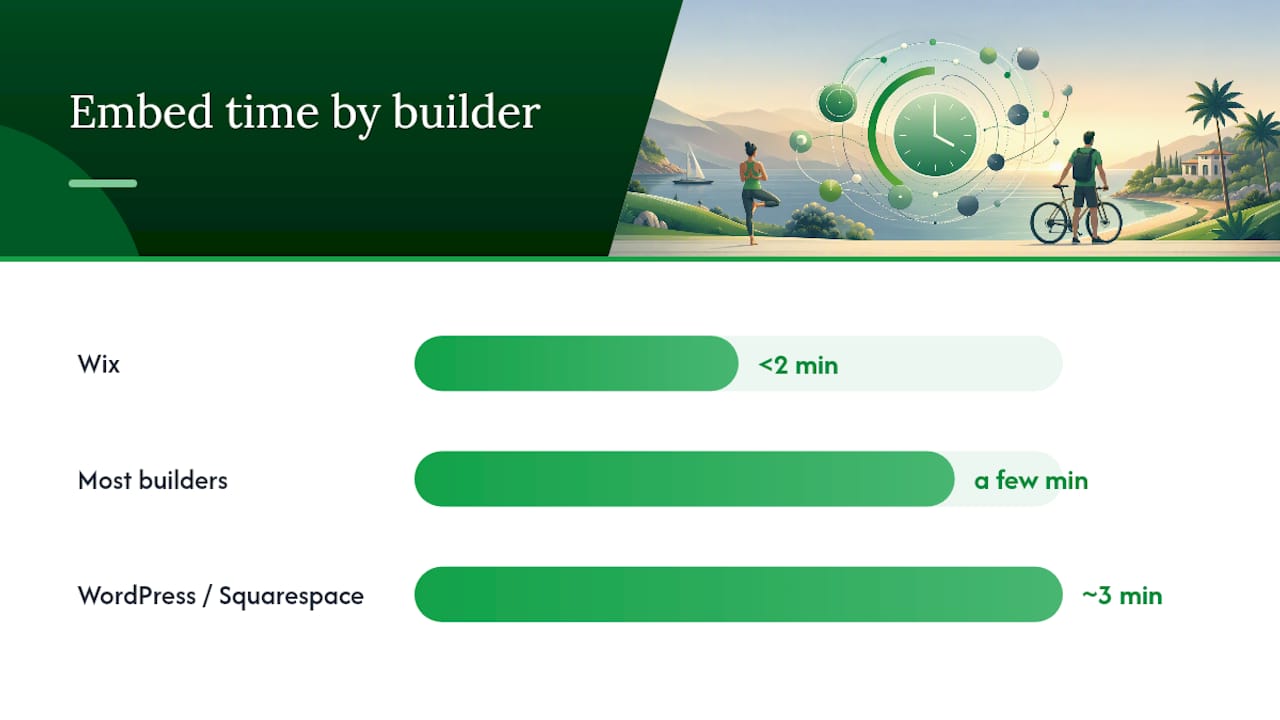
Embedding takes minutes on every major platform, but the method changes site to site, and choosing the wrong embed type creates mobile problems you won’t notice until a client complains.
An inline iFrame embed sits fixed inside a section of your page. A popup or floating widget opens on top of your content when clicked. A direct booking link just sends visitors to a separate page entirely. Embedding a widget on most builders takes only a few minutes., with Wix often under two minutes and WordPress or Squarespace closer to three.
- WordPress: Add a Custom HTML block (or a dedicated booking plugin), paste your embed snippet, then preview before publishing.
- Shopify: Use the theme editor to add a custom section, or place the widget on a dedicated service page so it shows consistently across your service listings.
- Wix: Add an Embed element from the site editor, paste your code, and resize it to fit your layout.
- Squarespace: Drop a Code Block into the page where you want the widget, then paste the embed snippet.
- Webflow: Add an Embed element to the canvas and insert your code inside it.
Here’s the catch almost every guide skips: fixed-width iFrames frequently break on mobile screens, cutting off calendar cells or forcing awkward horizontal scrolling. Choose a tool that offers a responsive or floating widget instead of a rigid iFrame whenever you can. Given that A large majority of consumers say they prefer businesses that offer online booking, a broken mobile experience undoes most of the advantage you just built.
Should you collect deposits or full payment at booking?
The right answer depends on how expensive a no-show is for you. A deposit reduces cancellations but can shave a percentage off conversions, since some clients hesitate to pay anything before they’ve met you. Full payment upfront eliminates cancellation risk entirely, and works well for shorter, lower-cost services like a haircut or a consultation call. For a multi-hour job with materials involved, a deposit tends to strike the better balance.
Whichever you choose, connect Stripe or PayPal and run a real test transaction before you go live. Check payout timing (some processors hold funds for a day or two) and confirm the fee percentage so it doesn’t surprise you on your first invoice.
- Show the deposit amount and cancellation terms clearly on the booking page itself, not buried in a confirmation email
- Link every booking ID to its matching invoice and receipt so reconciliation doesn’t turn into a spreadsheet hunt at month end
- Decide up front whether a late cancellation forfeits the deposit, and state that policy before payment, not after
What actually cuts no-shows?
No-shows are rarely random. They’re almost always a communication gap, and you can close most of it with automation you set up once.
Send an immediate confirmation the moment someone books, then follow with automated reminders at 24 hours and again at 2 hours before the appointment. Both messages should include a reschedule or cancellation link, so a client who genuinely can’t make it moves the slot instead of just vanishing.
- Set a clear cancellation window (24 or 48 hours is standard for most trades)
- Keep the deposit for cancellations that fall inside that window
- Track your no-show rate monthly so you know if a policy change actually worked
- Run a short follow-up sequence for missed appointments to recapture the booking instead of writing it off
Pro Tip: If a client no-shows twice, require a full prepayment for their next booking instead of a deposit. It filters out the repeat offenders without you having to have an awkward conversation.
How should contractors configure buffers, travel time, and job flow?
Booking software built for salons or gyms usually assumes clients walk through a front door. Contractors don’t get that luxury. You’re driving between job sites, loading tools, and often quoting before you ever schedule anything, so your setup needs a different backbone.
Buffer time isn’t optional padding here. A 15 to 30 minute buffer between jobs accounts for drive time and setup, and it should scale with your typical route density. A plumber working a tight neighborhood needs less buffer than an electrician covering a rural county.

Use intake questions at booking to route the job correctly. A short form asking property type, access notes, or the specific issue lets you assign the right crew before you’ve even looked at the calendar, instead of scheduling first and figuring out logistics later.
The bigger shift is connecting quoting to booking. Once a client accepts a quote, it should become a scheduled job and an invoice without you re-entering anything or asking them to create an account. QuoteLock is built around exactly that sequence: quotes go out fast, clients accept without a login, and accepted quotes convert into invoiced, scheduled jobs in one motion.
Why most booking advice misses what trades actually need
Most online booking content is written for salons, gyms, and consultants, businesses where the appointment is the whole transaction. Trades don’t work that way. A booking is usually the second step after a quote, and it’s followed by materials, scheduling, and an invoice that still needs collecting on.
That’s where generic advice falls short. Buffer time gets treated as a minor setting instead of the thing that keeps your day from unraveling. Payment collection gets discussed in isolation from the quote that preceded it, when in reality the two should be one continuous flow. And almost nobody addresses what happens after a client books: how you turn that slot into an invoiced, paid job without re-entering data three times.
If you’re a contractor reading this, prioritize the quote-to-booking-to-invoice chain before you obsess over widget colors or calendar themes. Get the travel buffers right, get the deposit terms visible before payment, and make sure an accepted quote turns into a scheduled job automatically. Everything else is polish.
— Robert
Get your booking, deposit, and invoice flow running in one tool
QuoteLock closes the gap that most booking software leaves open: what happens between “client booked” and “client paid.” Instead of juggling a scheduling app, a separate payment processor, and a third tool for invoicing, you run the whole sequence from one place.
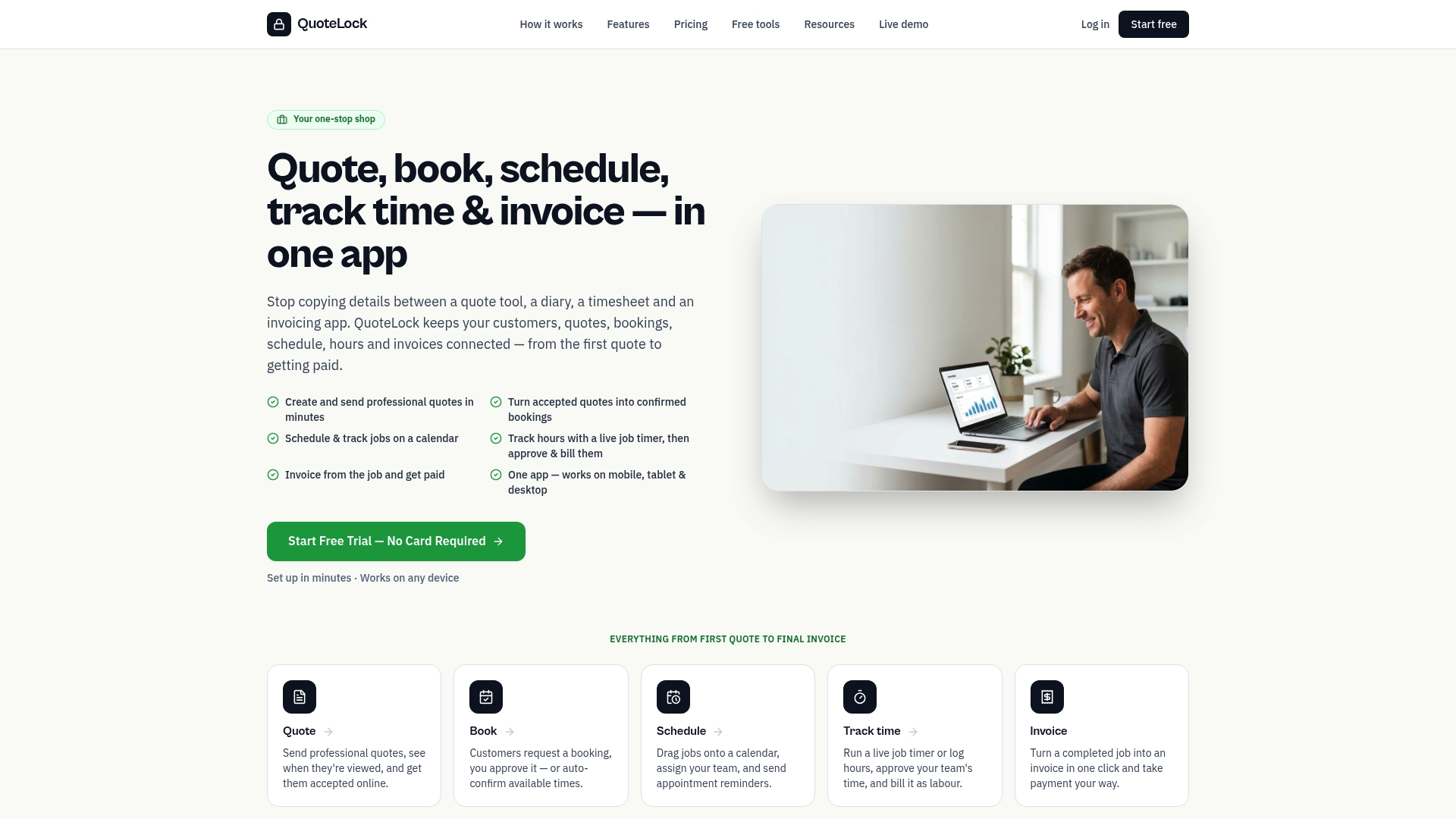
With QuoteLock, you can:
- Send quotes clients accept online, no login required
- Collect deposits at the moment a quote is accepted
- Convert an accepted quote directly into a scheduled job and an invoice with one click
- Track quote views and send automatic follow-ups so accepted work doesn’t stall
Getting started takes about as long as your morning coffee. Sign up, build your first quote template, and you’re working inside a 7-day free trial with no client software or logins to explain. If you’re ready to stop losing time between the quote and the payment, see how QuoteLock’s quoting software fits into your current workflow and start your trial today.
Sources
- How to Add a Booking Widget to Any Website in 5 Minutes | Kentroi Blog
- How to embed your Online-Booking page as an iFrame into a responsive website (Phorest support)
- Add buffer time between appointments for online bookings (Halaxy support)