Getting Started with QuoteLock
New to QuoteLock? This guide walks you from sign-up to your first sent quote and invoice.
What QuoteLock is
QuoteLock is a quote-to-paid workflow tool. It helps service businesses send professional quote pages, see when they're viewed, follow up, take bookings, and turn accepted quotes into invoices.
Who QuoteLock is for
Roofers, builders, landscapers, painters, bathroom & kitchen fitters, paving companies, caterers, event suppliers and any B2B service business that sends quotes regularly.
The basic workflow
Create a quote → the customer views and accepts it → they request a booking → you raise an invoice → you track the payment.
Step 1 — Create your account
Sign up free with your email — no card needed to start. When you're ready, pick a plan to begin your 7-day free trial: enter your card to start, you won't be charged until day 7, and you can cancel anytime before then.
Step 2 — Add your business details
In Settings → Business, add your business name, address, phone, email and website. These appear on your quotes and invoices.
Step 3 — Set your VAT/tax settings
Choose your tax label (VAT, GST, Sales Tax, etc.), add your tax number and default rate. Ireland defaults to VAT at 23%, the UK to VAT at 20%.
Step 4 — Add your logo and branding
Upload your logo and set your brand colour so quote pages look like yours. On paid plans you can remove QuoteLock branding entirely.
Step 5 — Create your first customer
Add a customer with their name, email and phone. You can also add customers on the fly while building a quote.
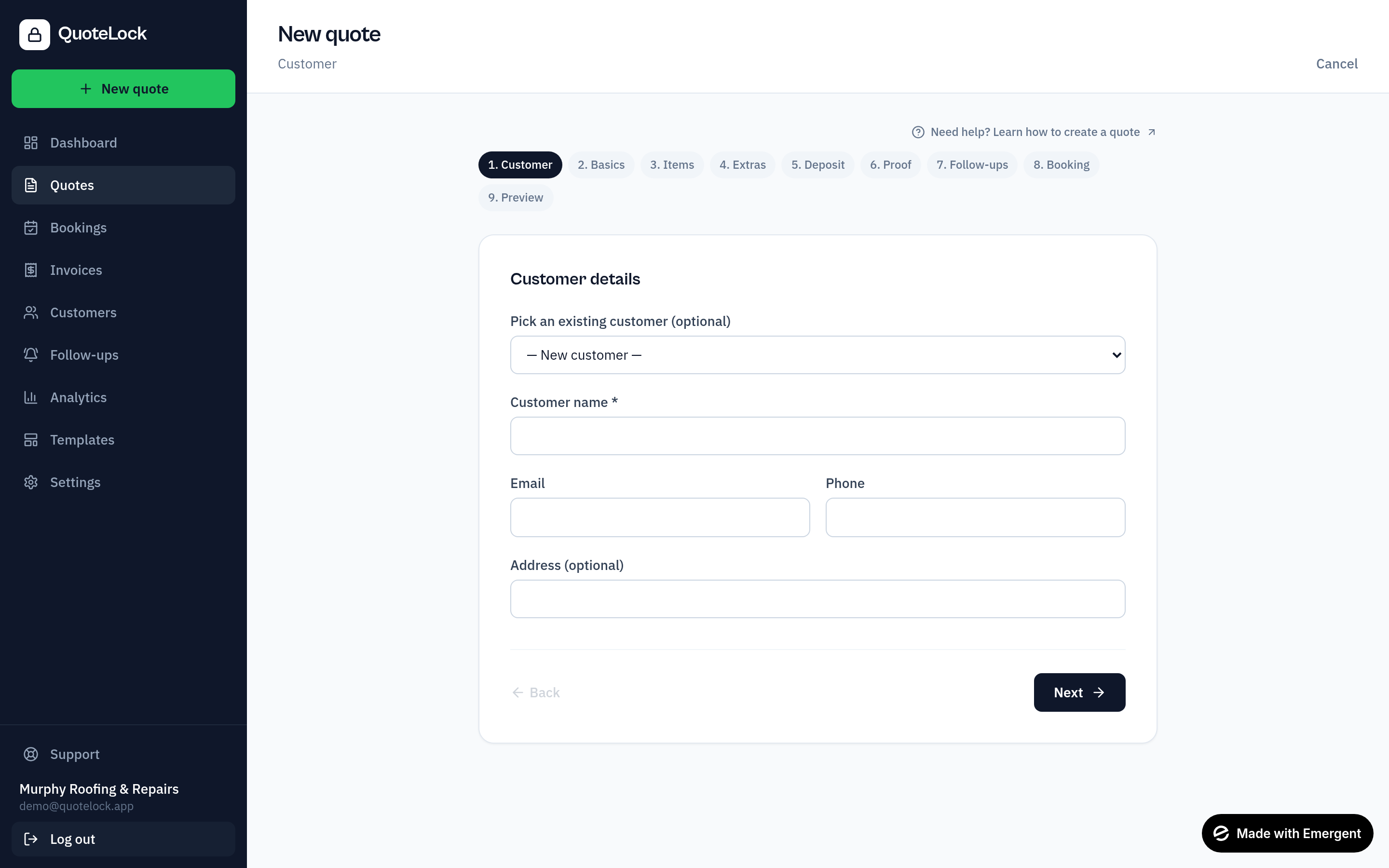
Step 6 — Create your first quote
Open Quotes → New quote, add line items, set VAT, add a deposit/payment link and booking options.
Step 7 — Send the quote
Send by email as a link, a PDF attachment, or both — with CC/BCC — copy the secure link, or share it over WhatsApp. Customers don't need an account to view it.
Step 8 — Track views and follow up
Your dashboard shows which quotes have been viewed. Send a follow-up when a quote is viewed but not accepted.
Step 9 — Accept the quote and request booking
When the customer accepts, they can request a preferred date/time. You confirm or propose another slot.
Step 10 — Create an invoice
Convert an accepted quote into an invoice, add a payment link, and track paid / partially paid / overdue.
Ready to get going?
Related guides
We use essential cookies to run QuoteLock and privacy-friendly analytics to improve it. See our Privacy Policy.