What to Put in a Booking Confirmation Email (Plus 6 Templates)

What to Put in a Booking Confirmation Email (Plus 6 Templates)
A booking confirmation email is the automated message a customer gets the moment their reservation goes through, and it exists to answer one question: “Did this actually work?” Get it right, and it also answers “what happens now?” without a single phone call to your business.
At minimum, a solid confirmation needs:
- A booking reference or ID
- Date and time, with time zone if you serve clients across regions
- The service, room, or job description
- Location details or an access link for virtual sessions
- A payment summary (amount paid, balance due, deadline)
- A direct line to reschedule or cancel
The core elements above consistently cut down on the “just checking this went through” messages that eat into your day. One habit matters more than any single field: send the email automatically, the instant the booking is made. Delay it by even an hour and you invite doubt, and doubt turns into a phone call.
Key Takeaways
A booking confirmation email works only when it’s sent automatically, includes the booking ID, date, time zone, location, and payment summary, and gives customers a one-click way to reschedule.
| Point | Details |
|---|---|
| Send immediately | Automate delivery the moment a booking or payment completes to prevent buyer’s remorse and support calls. |
| Include the core five fields | Booking ID, date/time with time zone, service description, location or access link, and payment summary. |
| Design for mobile scanning | Use single-column layout, bold labels, and buttons at least 44 pixels tall for easy tapping. |
| Separate confirmations from reminders | Send the confirmation instantly, then a separate reminder 24 to 72 hours before the appointment. |
| Keep it transactional | Avoid promotional content and no-reply addresses to protect inbox placement. |
| Automate the whole flow | Quote-lock triggers confirmation emails automatically from bookings and accepted quotes, with deposit and receipt links built in. |
Table of Contents
- Booking Confirmation Email Requirements: What to Include
- What Should a Confirmation Email Subject Line Say?
- How Should a Confirmation Email Be Formatted for Mobile?
- When Should You Send a Booking Confirmation Email?
- Showing Payments, Deposits, and Cancellation Terms Clearly
- Six Booking Confirmation Email Templates You Can Copy
- Why Confirmation Emails Need to Stay Transactional
- What Software Providers See Behind the Scenes
- What Actually Matters Here (and What Doesn’t)
- Automate Your Confirmations Without Building a System From Scratch
- Sources
Booking Confirmation Email Requirements: What to Include
Every field in a confirmation email earns its place by preventing a specific question the customer would otherwise ask you directly. Skip one and you’re trading a thirty-second automated message for a five-minute phone call.
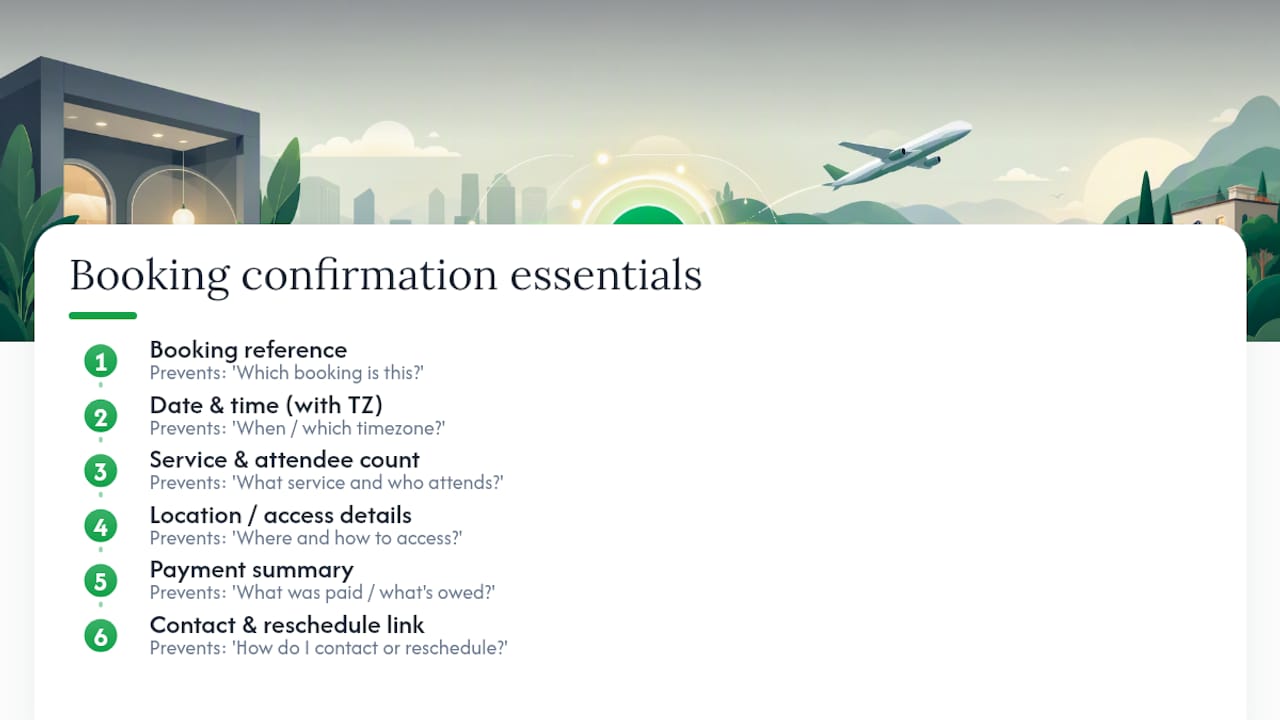
Booking reference. This number is what a customer reads back to you when something changes. Without it, your team wastes time hunting through calendars to match a name to an appointment. With it, any staff member can pull up the job in seconds.
Date and time, with the time zone spelled out. This sounds obvious until you book a client in a different region and they show up an hour off. Even for local businesses, writing “2:00 PM EST” instead of just “2:00 PM” removes any ambiguity.
Service or room description, plus attendee count. A landscaper booking “lawn maintenance” versus “full yard renovation with tree removal” needs different equipment on the truck. Say exactly what was booked, not a generic category.

Location or access details. For in-person appointments, that’s an address and parking notes. For virtual meetings, it’s the video link, ideally placed as a clickable button rather than a raw URL.
Payment summary. State what’s paid, what’s owed, and when the balance is due. Link directly to a receipt if one exists.
Contact info with a working reschedule link. Mailchimp’s guidance on this is blunt: customers need one phone number or email and one clear path to change plans, because a confirmation is often their first real interaction with your business after paying.
Optional extras can add real value without turning the email into a flyer. A short prep checklist (“please clear access to the water heater”), a parking tip, or a single relevant add-on works well when it’s genuinely useful. Hospitality operators often use this space for one high-value upsell, like a late checkout option, rather than a laundry list of offers.
Pro Tip: If you serve clients with arrival windows instead of fixed times, put that window in bold near the top of the email. A visible “Between 9:00 AM and 11:00 AM” line does more to prevent no-shows than any other single change you can make.
What Should a Confirmation Email Subject Line Say?
Your subject line has one job: let the customer recognize their booking in a crowded inbox without opening the email. That means front loading the date, the business name, and the reference number, and keeping the whole thing under 60 characters wherever possible.
A workable formula looks like this: [Business Name]: Booking Confirmed for [Date]. Swap in specifics depending on your industry, but keep it under nine words.
Preview text is the sentence that shows up right after the subject line in most inboxes, and most businesses waste it. Instead of letting it default to “View this email in your browser,” write one line that adds information the subject line didn’t have room for, like the time or location.
Examples by industry:
- Hotel: “Your Stay at Cedar Creek Inn: Check In June 14”
- Salon: “Confirmed: Haircut with Maria, Tuesday 2:00 PM”
- Tour operator: “Booking #4471: River Kayak Tour, Saturday 9 AM”
- Appointment/service: “Job Confirmed: HVAC Inspection, Friday 10-12 PM”
Notice the pattern: name, date, and reference number appear in nearly every version. That’s not a style choice, it’s what makes the email findable six weeks later when the customer searches their inbox for “kayak tour.”
How Should a Confirmation Email Be Formatted for Mobile?
Most customers will open this email on a phone while walking to their car, not at a desk. Design for that reality first. A single-column layout is non-negotiable here, since multi-column templates collapse awkwardly on small screens and bury the details customers need most.
Scannability guidance from Twilio recommends customers be able to find core details in under two seconds, and bold labels are how you get there. “Date:”, “Time:”, “Location:” in bold, followed by the actual value, lets a customer’s eye jump straight to what they need without reading full sentences.
Structure the email top to bottom in this order: booking reference and status at the very top, then date/time and location directly below, then payment details, then action buttons last. Put your add-to-calendar button, map link, and reschedule link close together near the bottom, styled as actual buttons rather than plain text links.
Pro Tip: Make buttons at least 44 pixels tall. That’s the general touch-target size that keeps someone with average-sized thumbs from missing the tap and accidentally opening the wrong link on a crowded screen.
Keep contrast high between text and background, and avoid light gray text on white, which is a common readability failure in template builders. A booking confirmation isn’t the place to get clever with color.
When Should You Send a Booking Confirmation Email?
Send it immediately, every time, with no exceptions for manual bookings. Immediate automated delivery is the standard for a reason: the longer the gap between booking and confirmation, the more a customer wonders if something went wrong, and the more likely they are to call and ask.
Two triggers cover most businesses:
- Booking completed — fires the moment a customer finishes an online booking form or your staff finalizes a phone booking in the system.
- Payment captured — fires once a deposit or full payment clears, which matters most for businesses that require payment upfront.
If you’re still taking bookings by phone or text and typing them into a calendar by hand, build in a five-minute rule: confirm before you move to the next task, not at the end of the day. A missed manual confirmation is the single most common gap in small business booking workflows, and it’s usually not a bad process, it’s just no process at all.
Confirmations and reminders are different messages with different jobs. The confirmation email works as a receipt, sent the instant the booking happens. A reminder is a separate email sent 24 to 72 hours before the appointment, and its only purpose is reducing no-shows. Combining the two into one email sent early loses the reminder’s effectiveness, since most people forget a confirmation email exists by the time the appointment actually arrives.
Showing Payments, Deposits, and Cancellation Terms Clearly
Money confusion generates more support tickets than almost anything else in a booking flow. State three numbers plainly: amount paid, balance due, and the payment method used, with a receipt link if you generate one.
Deposit and refund rules need plain language, not legal phrasing pulled from a contract template. A paragraph of conditional clauses does not.
Reschedule and cancellation links should be one click, not a request to reply and wait for a human. A trackable reschedule link that updates the booking and automatically sends a new confirmation removes an entire back-and-forth from your day.
Quick checklist for this section of your email:
- Amount paid and balance due, stated as numbers, not percentages alone
- Payment method used and a receipt link
- Deposit and refund terms in one plain sentence
- A one-click reschedule button
- A one-click cancellation link, even if it just opens a reply
Six Booking Confirmation Email Templates You Can Copy
These cover the situations most service and hospitality businesses run into. Adjust the tone: appointment-based services can stay brief and direct, while hotels and tour operators benefit from a slightly warmer voice since the stakes (and the price) are usually higher.
-
Standard service appointment. Subject: “Confirmed: [Service] on [Date].” Body includes booking ID, arrival window, address, technician name, and a reschedule link. One CTA: “Need to change this? Reschedule here.”
-
Paid deposit booking. Subject: “Booking Confirmed: [Service], Deposit Received.” Body shows deposit amount, balance due, due date, and refund terms in one sentence. CTA: “View your receipt.”
-
Hotel-style stay. Subject: “Your Stay Confirmed: [Dates].” Body includes check-in/check-out times, room type, confirmation number, and address with a map link. CTA: “Add to calendar.” One optional upsell line, like early check-in availability.
-
Group or tour booking. Subject: “Group Booking Confirmed: [Tour Name], [Date].” Body lists headcount, meeting point, what to bring, and a group leader contact. CTA: “View meeting point on map.”
-
Virtual meeting. Subject: “Confirmed: [Meeting Type] on [Date/Time].” Body has the video link front and center, agenda if relevant, and time zone spelled out. CTA: “Join meeting” as a large button.
-
Waitlist confirmation. Subject: “You’re on the Waitlist for [Service/Date].” Body sets expectations on notice period and what happens if a slot opens. CTA: “Update your availability.”
Template roundups across the industry converge on the same short list of fields because customers respond to the same short list of questions no matter what they booked. If you’re building these from scratch, a free quote template can give you a starting layout for field labels and structure.
Pro Tip: Keep upsells to one or two lines, maximum. A confirmation email stuffed with cross-sell offers reads as spam even when the offer is genuinely useful, and it puts your logistics information further down the page where customers have to scroll to find it.
Why Confirmation Emails Need to Stay Transactional
Confirmation emails that read like marketing get treated like marketing, and that means spam folders. Deliverability guidance is direct on this: mixing promotional content into a transactional message risks the whole email getting filtered before the customer ever sees it.
Two fixes matter most. First, send transactional emails like confirmations from a separate sending setup than your marketing newsletter, ideally through a dedicated transactional email service or a distinct subdomain. Second, skip the no-reply address. A monitored inbox lets customers reply directly to reschedule or ask a quick question, and it signals to email providers that this address handles real conversations, not blasts.
Before you launch any template, run through a short test: check inbox placement (does it land in the primary folder, not promotions), preview it on an actual phone, and click every link to confirm it goes where it should. This five-minute habit catches the kind of small errors that otherwise turn into a wave of “did my booking go through?” emails.
What Software Providers See Behind the Scenes
Most small businesses don’t build a broken confirmation flow on purpose. They start with a single template, add fields as problems come up, and end up with a message that’s too long, too vague, or sent an hour late because someone forgot to trigger it manually.
The businesses that get this right treat confirmation emails as infrastructure, not an afterthought. Automating the trigger and tracking whether a customer actually opened the email catches missed bookings before they become missed jobs, and that’s usually worth more than any template tweak.
What Actually Matters Here (and What Doesn’t)
Most advice on this topic obsesses over subject-line formulas and template wording, and that’s the wrong place to start. The businesses that struggle with booking confirmations almost never have a wording problem. They have a timing problem: the email goes out three hours after the booking, or not at all when someone books by phone.
Get the automation right first by exploring flows every SA business needs, ensuring your booking confirmation emails trigger seamlessly and instantly. A plain, slightly boring confirmation sent instantly beats a beautifully designed one sent the next morning, every time. The customer’s anxiety window is the first ten minutes after they hand over their money or their calendar slot, not the moment they open the email later that day.
Where conventional advice falls short is treating every business the same. A hotel confirmation can carry warmth and a little upsell copy because the booking value supports it. A plumber’s confirmation should be four lines and a map link, because nobody wants to read prose before a repair. Match the tone to the price point and the urgency, not to a generic template’s default voice.
If you fix one thing this week, fix the trigger, not the copy.
— Robert
Automate Your Confirmations Without Building a System From Scratch
Every field this guide covers, booking ID, date and time, payment status, reschedule link, has to live somewhere your booking software can pull from automatically. That’s the real barrier for most trade and service businesses: not knowing what to write, but not having a system that sends it the second a job is booked.
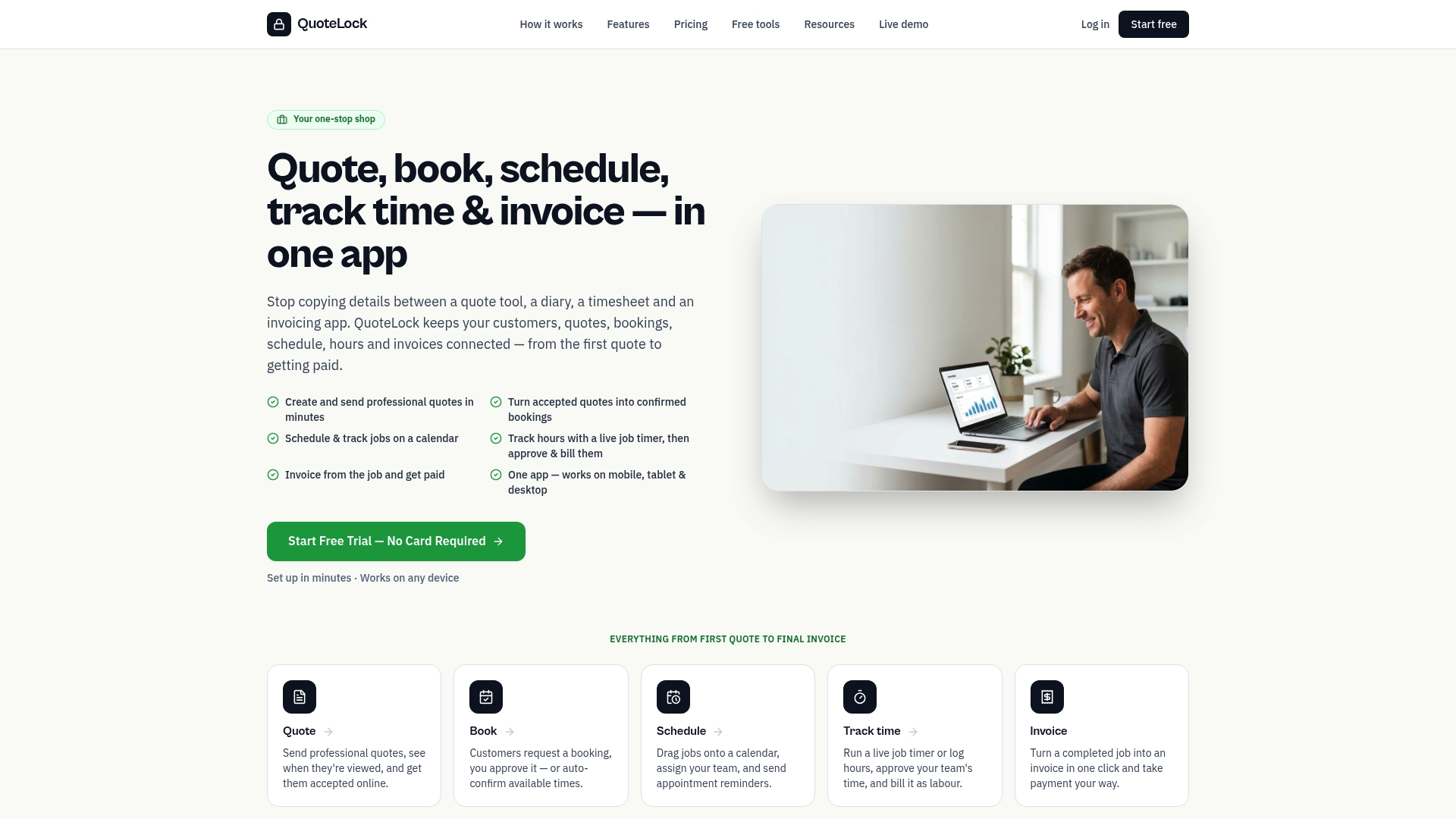
Quote-lock handles this by connecting your booking and invoicing in one place. When a client books a job or accepts a quote, Quote-lock can trigger the confirmation automatically, complete with deposit handling, receipt links, and one-click quote-to-invoice conversion once the work is done. There’s no client login required and no software training for your team, which matters when you’re already stretched thin on paperwork. If you’re tired of manually chasing confirmations, deposits, and follow-ups, take a look at QuoteLock’s quoting and booking software and start a trial to see how much admin time it actually saves.